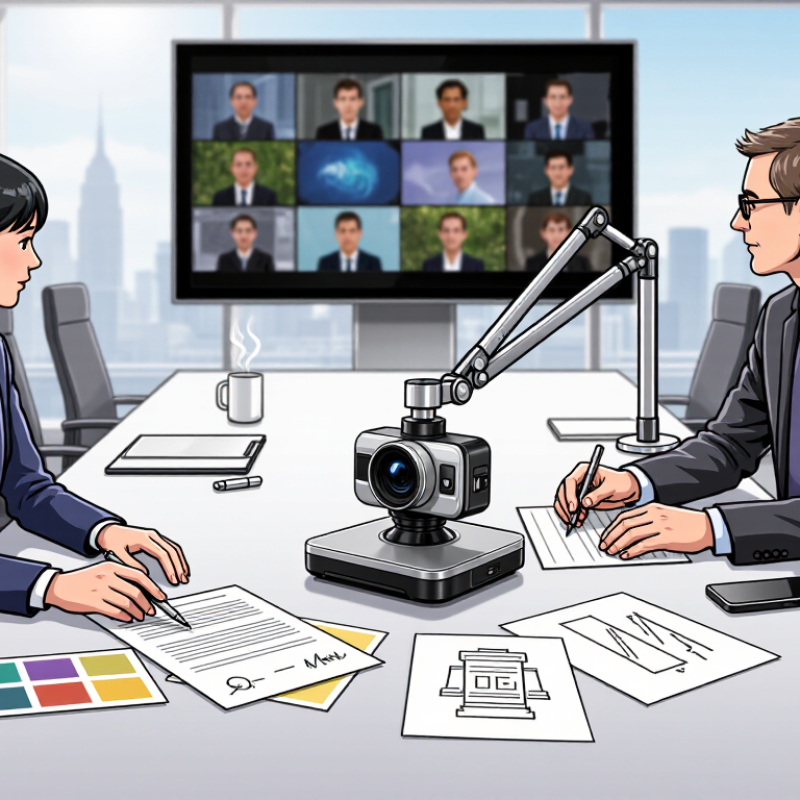
Business meetings often depend on small details: a signed page, a product sample, or a handwritten diagram. A Document Camera can bring those details into a live presentation without asking everyone to gather around one desk. But image quality alone does not make a device suitable for business.
Work patterns help explain why this tool deserves consideration. McKinsey’s 2022 American Opportunity Survey found that 58% of employed respondents could work from home at least one day each week. That makes clear, dependable ways to share physical materials increasingly useful. AVIXA’s 2023 Industry Outlook and Trends Analysis projected global professional audiovisual revenue would reach $325 billion by 2028. This figure covers the broader AV sector, not document cameras specifically. It signals investment in workplace visual communication, but it cannot prove that every company needs a camera.
Choosing well takes more than comparing prices. Check how clearly the camera captures fine print, whether its stand fits your meeting table, and how easily it connects to your existing display or conferencing setup. Ask who will use it, how often, and whether documents need to be saved or shared. Small details matter. A crisp image is less helpful if setup takes ten minutes or the camera blocks the presenter’s view.
There is no universal best model. That is worth remembering. A compact unit may suit occasional reviews, while frequent demonstrations may call for stronger optics and flexible positioning. Compare specifications with your actual workflow, and test a shortlisted model with the paper sizes and lighting conditions you use. Reports offer context; a practical trial reveals the fit.
Choose resolution by the smallest detail viewers must read, not by the biggest number on a spec sheet. Full HD at 1,920 × 1,080 captures about 2.07 million pixels. 4K UHD at 3,840 × 2,160 captures about 8.29 million—four times as many. These formats are specified in professional imaging standards, including SMPTE ST 274 for HD and ST 2036-1 for UHD. For invoices, forms, and handwritten notes shown close-up, 1080p is often sufficient. More pixels help when viewers need to inspect tiny labels, fine diagrams, or a cropped section of a larger page.
Resolution alone cannot rescue a blurry image. Focus, lens quality, lighting, and camera distance all affect legibility. A 4K camera may also create larger files and require more bandwidth, storage, or processing power. I wouldn’t choose 4K just to feel future-proof; that can be an expensive guess. Test both resolutions with your actual documents and meeting setup before deciding.
Tips: Place a small-print page under the camera and check it on the screen your team uses. Test your real documents. If viewers often zoom in, 4K may earn its extra cost.
When choosing a document camera, match its frame rate to what people will see on screen. For worksheets, contracts, or a book held steady beneath the lens, 30 frames per second is usually smooth enough. The text stays readable when focus and lighting are set well. A still page does not need extra frames.
Choose 60 fps when motion matters. It can make page turns, handwriting, object demonstrations, and live annotation look more fluid, especially on a large display. The difference is noticeable when a hand moves quickly across the frame. But 60 fps does not automatically make letters sharper; resolution, focus, and exposure matter too.
Higher frame rates may increase data use and can challenge the camera in dim rooms. Some models need more light to keep moving images crisp, so test under your actual office lighting. Try writing a short word, turning a glossy page, and moving a small object at normal speed. Watch the result on the display your audience will use. If motion looks natural at 30 fps, the added bandwidth may not help. Oddly, I have seen teams choose 60 fps, then leave the camera pointed at static papers all day.
| Comparison factor | 30 fps capture | 60 fps capture | What to consider for your business |
|---|---|---|---|
| Frames captured per second | 30 frames each second; one frame about every 33.3 milliseconds. | 60 frames each second; one frame about every 16.7 milliseconds. | A higher frame rate records changes more frequently, which can make moving content look smoother. |
| Mostly stationary documents | Usually suitable for showing printed pages, forms, receipts, and still diagrams. | Can work well, but may offer little visible benefit when the document and camera remain still. | For static pages, prioritize readable resolution, focus, lighting, and glare control over frame rate. |
| Frequent movement | Can show hand movements and page turns, though rapid motion may appear less smooth. | Captures more temporal detail and generally renders quick movements more smoothly. | Consider 60 fps for live demonstrations involving page flips, handwriting, small moving parts, or frequent object handling. |
| Motion blur | May show blur during fast movement, depending on shutter speed and lighting. | Can provide more frequent frames, but does not by itself guarantee sharper individual frames. | Shutter speed, exposure, and available light also affect motion blur; test with the actual room lighting and subject movement. |
| Resolution at the selected frame rate | The device may offer its highest supported resolution at this frame rate. | Some devices limit resolution or other settings when operating at 60 fps. | Check the camera’s supported resolution-and-frame-rate combinations, not just its maximum resolution and maximum fps listed separately. |
| Network and storage demand | Often requires less data than 60 fps when resolution and encoding settings are comparable. | May increase processing, network, and storage demands; the actual difference depends on compression and bitrate settings. | Confirm that the computer, video connection, conferencing software, and network can handle the chosen settings. |
| Best-fit use case | Routine document sharing, presentations, and demonstrations with limited movement. | Movement-intensive demonstrations where smooth playback and more frequent motion sampling matter. | Choose the lowest frame rate that meets your motion needs while preserving adequate image detail and reliable operation. |
When comparing document cameras, USB speed can affect how smoothly images reach a computer. USB 2.0 has a maximum rated speed of 480 Mb/s, while USB 3.2 Gen 1 is rated at 5 Gb/s. Those figures are theoretical limits, not guaranteed transfer rates. The gap matters most when a camera sends high-resolution video, captures motion, or streams continuously during a presentation.
That gap matters.
For occasional still images or a modest live feed, USB 2.0 may be sufficient.
A common misstep is choosing by the port label alone. The camera, computer port, and cable all need to support the faster standard for USB 3.2 Gen 1 speeds to be available. A compatible faster camera can often work through a USB 2.0 connection, but it may run at the slower rate.
The numbers look decisive; in practice, they aren’t.
Compression, software, cable quality, and other connected devices can also affect performance. Before buying, check the camera’s supported resolution and frame rate over each connection type, then test it with the computer and conferencing setup you actually use. Watch for delayed page turns or a soft, stuttering image. Those small flaws can matter more in a busy meeting than a higher number on a specification sheet.
ISO 216:2007 defines A4 as 210 × 297 mm and A3 as 297 × 420 mm. Use these dimensions to check the camera’s actual capture area, not just its advertised megapixel count. A4 works for invoices, forms, and most single-page records. A3 provides twice the paper area. That matters for open ledgers, oversized drawings, or two A4 pages placed side by side.
Resolution needs to match the area. At 300 pixels per inch, an A4 image requires about 8.7 megapixels; A3 requires about 17.4 megapixels. These are calculated figures based on ISO dimensions, not a guarantee of sharp output. Lens quality, lighting, and the camera’s effective resolution also affect detail. Check the full-page image at the edges. Cropping can quietly remove handwritten notes.
Measure your largest routine document before buying. Leave a small margin around it, especially if pages curl or need alignment. A3 capture gives flexibility, but it may add cost and take more desk space. Not every team needs it. I would still test a folded form or thick book; real documents are rarely as tidy as specification sheets suggest.
How to Choose the Best Document Camera for Your Business
Match the camera to the material people actually need to see. Optical zoom enlarges a small serial number or chart without relying on digital cropping, which can soften fine lines. For a fixed desk, modest zoom may be enough; training rooms often need more reach. Test both. Gartner estimated that 39% of global knowledge workers would work hybrid in 2023, up from 37% in 2022 (Gartner, 2023). That makes clear, dependable document sharing useful beyond the meeting room.
Autofocus helps when presenters move between a page and a three-dimensional object. Check that it settles quickly on printed text, rather than pulsing between the page and a hand. A manual-focus option can help with glossy certificates or stacked samples, though staff may forget to adjust it. Small detail, real nuisance.
Lighting deserves its own test. Use a glossy page under the camera’s built-in lights, then check for glare and dark corners. Diffused, adjustable illumination usually gives more even results than a bright point source. AVIXA’s 2024 Industry Outlook forecast global professional audiovisual revenue of $325 billion in 2024, rising to $402 billion by 2029; the figures describe the wider AV market, not document cameras specifically. There is no perfect setting: shiny paper can still wash out, so test with the documents your team handles every day.
USB 2.0 is rated up to 480 Mb/s. USB 3.2 Gen 1 is rated up to 5 Gb/s. These are theoretical limits, not guaranteed speeds.
It may be enough for occasional still images or a modest live feed. For high-resolution video or continuous motion, the faster connection may help. Test it with your usual setup.
The camera, computer port, and cable must all support it. One slower component can limit the connection. The port label alone is not enough.
Watch for delayed page turns or a soft, stuttering image. Small details matter. Other devices, software, compression, and cable quality can affect performance too.
A4 measures 210 × 297 mm. A3 measures 297 × 420 mm, giving twice the paper area. Leave a little room around the page.
A4 usually suits invoices, forms, and single-page records. A3 can fit open ledgers, large drawings, or two A4 pages side by side. Not every team needs A3.
An A4 image needs about 8.7 megapixels; A3 needs about 17.4 megapixels. Those are calculated figures, not promises of sharp results.
Measure your largest routine document and check the full-page image, especially near its edges. Test a curled page or thick book too. Real paperwork is rarely tidy, and I might be overcautious here.
Choosing the right Document Camera starts with matching image quality to the work it will support. For routine worksheets, receipts, and printed documents, 1080p capture at 2.07 megapixels may be sufficient. Fine print, detailed diagrams, or close inspection can benefit from 4K UHD at 8.29 megapixels. Consider motion as well: 30 frames per second works for most stationary presentations, while 60 fps can make moving objects and live demonstrations appear smoother.
Next, check whether the connection, capture area, and controls fit your setup. USB 2.0 offers up to 480 Mb/s, while USB 3.2 Gen 1 supports up to 5 Gb/s for higher-bandwidth video. An A4 area suits standard pages; an A3 area accommodates larger documents or objects. Finally, compare optical zoom, autofocus, and built-in lighting against your typical tasks, room conditions, and ease-of-use needs to choose a camera that delivers clear, reliable results without paying for features you rarely use.