0%

A USB Document Camera can turn a worksheet, book page, or small object into a clear live image for a class, meeting, or recorded lesson. In 2026, the best choice is not simply the model with the highest resolution. It should suit your desk space, lighting, computer, and teaching or presentation style. Small details matter. A flexible arm helps frame a page without shifting the base; a built-in light can reveal faint pencil marks when room lighting is uneven.

This guide compares practical features, including image clarity, autofocus, arm movement, lighting, connection options, and software compatibility. It also considers setup time and portability: a camera that folds neatly into a bag may be more useful for a traveling teacher than a heavier model with extra controls. That trade-off matters. Even a sharp image can feel awkward if the camera struggles to focus on a close-up or its software does not work smoothly with your computer. Before buying, check the manufacturer’s compatibility details and warranty, then weigh them against your budget and daily needs. There is no universal winner. The right USB Document Camera is the one that reliably shows the details your audience needs, without adding friction to your routine.
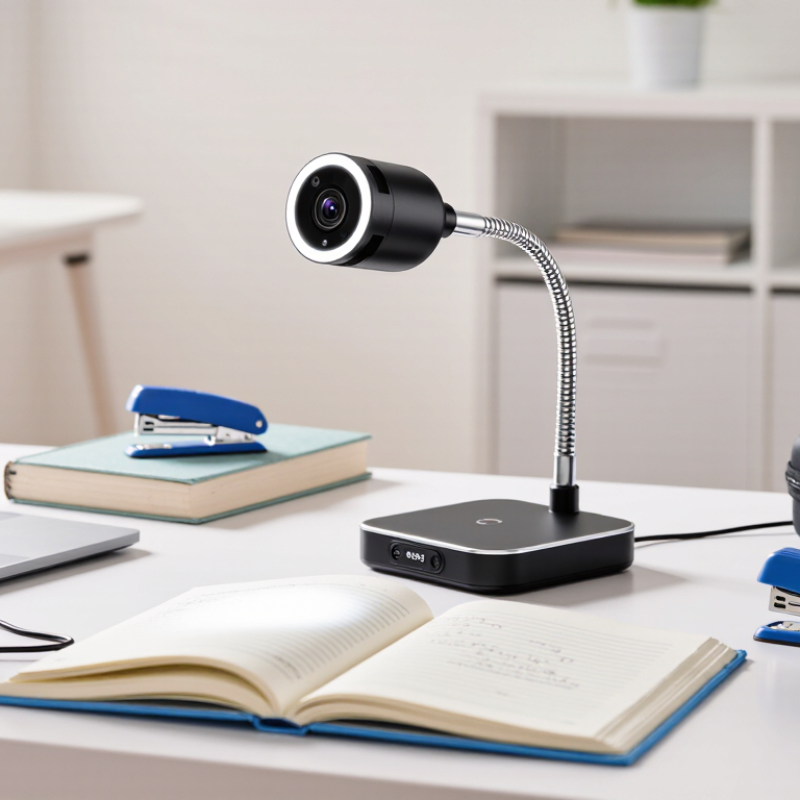
What Is the Best USB Document Camera in 2026?

What a USB Document Camera Is and How It Works

A USB document camera is an overhead camera that shows paper, books, or small objects on a computer screen. Its camera head points down toward a work surface, often from an adjustable arm. Place a worksheet beneath it, connect the camera to a computer, and open compatible viewing or meeting software. No film is needed. The camera’s sensor captures the scene and sends a live image through USB. Many models also draw power through that cable, though some setups may need extra power. It works much like a webcam aimed at a desk, but its stand and viewing area are designed for close-up materials.

When you lower a page under the lens, the software displays its image in real time. A teacher can write beside a diagram, turn a page, or hold up a small object while viewers watch. Focus may be automatic or adjustable, and a built-in light can help with shadows on a dim desk. The image is not always perfect: glossy paper can glare, and a wobbly arm makes fine text harder to read. I would check the camera’s focus, lighting, and computer compatibility before an important lesson. Small details matter. A USB document camera usually shows material live; it does not necessarily create a polished scan or save files by itself.

Key Features That Determine Image and Audio Quality

A USB document camera’s image quality depends on more than its advertised resolution. A sharp sensor and decent lens should keep small print readable, even near the page edges. Look for adjustable focus and exposure; otherwise, a glossy worksheet can turn into a bright blur. Details matter. In a dim classroom, a clear 1080p image may look better than a noisier 4K feed. Smooth motion also helps when a teacher moves a pencil across a diagram.

Color accuracy is easy to overlook. Red markings should remain red, not drift toward orange under overhead lights. A flexible arm and a stable base help keep the page in focus, especially when students handle materials nearby. I would test the camera with fine text, a colored chart, and a page under ordinary room lighting. That test is not perfect, but it reveals more than a specification sheet.

Audio quality depends on microphone placement and room noise. A built-in microphone may capture a clear voice when the speaker sits close, yet pick up keyboard taps or distant chatter. Listen closely. If the teacher moves around, check whether speech remains understandable from different positions. Some cameras offer basic noise reduction, but it can make voices sound thin. I would not assume that a camera with a microphone delivers reliable classroom audio; a separate microphone may work better in a large or echoing room.

What Is the Best USB Document Camera in 2026? - Key Features That Determine Image and Audio Quality

Feature What to Look For Why It Matters Practical Check
Resolution At least 1920 × 1080 pixels; 3840 × 2160 pixels can help when showing fine print or small objects. Higher resolution can preserve more detail, but results also depend on focus, lighting, and the camera sensor. Test with small text at the intended camera height and confirm the meeting or capture software supports the selected resolution.
Frame rate 30 frames per second is suitable for most page demonstrations; 60 frames per second can make hand movement look smoother. A higher frame rate improves motion fluidity, but may increase bandwidth or reduce the available resolution on some setups. Check the frame rate at the resolution you plan to use, rather than relying on the maximum listed for a different mode.
Focus Autofocus for changing distances, or reliable fixed focus if the camera will remain at a consistent height. Clear focus is essential for readable text and detailed demonstrations. Autofocus can occasionally shift when hands enter the frame. Move a page or object closer and farther away, then check whether focus settles quickly and stays steady.
Exposure and white balance Stable automatic exposure and white balance, ideally with manual controls or exposure lock. These settings affect brightness and color consistency, especially when showing glossy pages, colored materials, or mixed lighting. Show a white page and a colored object under the room’s usual lighting; look for distracting brightness or color changes.
Lens coverage and working area A field of view wide enough to capture the largest page or object at the camera’s normal height. A wider view fits more content, while excessive width can make small text appear smaller in the image. Place a full-size page under the camera and confirm that all edges fit without sacrificing legibility.
Lighting Even illumination from room lights or an adjustable built-in light, with limited glare and shadow. Good lighting helps the camera produce a cleaner, clearer image; resolution alone cannot compensate for dim or uneven lighting. Check for shadows from the camera arm and reflections on glossy pages, then adjust the light or camera position.
USB connection and compatibility A direct USB connection and confirmed support for the computer’s operating system and the intended camera or conferencing software. Compatibility affects whether the camera is detected and which image modes are available. Hubs, cables, and software can also affect operation. Verify the available USB port, cable length, and supported video modes on the actual computer before choosing a setup.
Microphone and audio Confirm whether a microphone is built in. For clear spoken instruction, use a quality external USB microphone or headset when needed. A document camera may provide video only, and a built-in microphone’s pickup quality and noise handling can vary. Camera image specifications do not establish audio quality. Test speech from the normal speaking position and listen for room echo, keyboard noise, and level changes in the conferencing software.
Best-fit choice Prioritize stable focus, even lighting, suitable page coverage, and reliable software compatibility; choose higher resolution when fine detail is important. The best option depends on the material and room. A balanced, clear image is generally more useful than a high resolution that is difficult to use. Compare cameras using the same page, camera height, lighting, computer, and software settings.

Note: The values above are practical selection guidelines, not claims about a specific product. Actual image modes, autofocus behavior, microphone availability, and compatibility vary by camera and software.

USB Document Camera Types and Their Trade-Offs

USB document cameras generally fall into three groups: compact portable units, articulated-arm models, and fixed overhead systems. Portable cameras pack easily and set up fast. Their short stands can make a textbook page feel cramped, though. An articulated arm gives more room for worksheets, circuit boards, or a small object, but its joints may wobble when students tap the desk. Fixed overhead units stay steady and suit dedicated teaching spaces. They take up room. That matters.

Connection speed is one useful specification, not a full measure of image quality. The USB Implementers Forum lists USB 2.0 signaling at up to 480 Mbps and USB 3.2 Gen 1 at up to 5 Gbps. These are interface limits, not guaranteed video rates. A sharp sensor can still produce a soft image under dim classroom lights. Check focus behavior, exposure controls, and whether the camera needs a driver. Not always.

For live demonstrations, autofocus saves time when a hand moves between a page and a small object. It can also hunt, briefly blurring the view. Manual focus is steadier but slower to adjust. A wide capture area helps with open books; it may shrink fine text on screen. Before choosing, test a printed page at the actual desk height and room lighting. I would trust that test more than a headline resolution number. USB-IF specifications describe connection capability, while real image results depend on the camera and setup.

USB Document Camera Types: Trade-Offs in 2026

Typical relative ratings (1 = low, 5 = high), based on common design characteristics. These are comparative estimates, not standardized test results.

Fixed-arm models generally favor stability, while folding portable models are easier to carry. Flexible-arm designs offer adaptable positioning; overhead scanner-style models typically provide broad capture coverage.

How to Compare the Leading Models in 2026

When comparing leading USB document cameras in 2026, start with the page, not the specification sheet. Place a printed worksheet beneath each camera and check whether small footnotes stay sharp at the edges. A high-resolution sensor can help, but focus behavior matters more during a live lesson. Autofocus is convenient for books and three-dimensional objects; manual focus can be steadier when the camera points at one fixed page. Test both under ordinary room lighting.

Look closely at the capture area, hinge movement, and built-in illumination. A wide view may fit a textbook, yet make handwriting appear tiny on screen. A lamp should brighten the paper without washing out pencil marks or creating a hard shadow from your hand. Try turning a page and writing a short note while the camera runs. Watch for lag, flicker, and focus hunting. Small annoyances matter.

USB compatibility deserves a real check. Confirm that the camera works with your computer and teaching software, then see whether it needs extra drivers. Some models offer a smoother image, while others are easier to position or carry. Compare the actual image at the distance you will use, not just the advertised maximum resolution. That test is not perfect; screens and lighting vary. Still, it often reveals more than a feature list. A slightly awkward stand can also become tiresome after an hour.

Choosing a Camera for Teaching, Meetings, or Scanning

Choosing a USB document camera starts with the task, not the advertised pixel count. For teaching, a stable overhead view should show a full worksheet and the pencil marks near its edges. Autofocus helps when a teacher raises a book; focus lock can prevent distracting shifts. Test it live. Check that the camera connects easily to the teaching computer and works with the software already in use.

For meetings, prioritize readable diagrams, quick setup, and a view that does not wobble when someone turns a page. For scanning, even lighting, a flexible arm, and capture software matter more than flashy specifications. UNESCO’s 2023 Global Education Monitoring Report noted that a review of 1,000 education-technology studies found only 7% were randomized controlled trials, while 12% used a comparison group. That research did not test document cameras, but it is a useful reminder: impressive features alone do not prove better outcomes. Small details matter.

A very high-resolution image can create bulky files and slow sharing. Meanwhile, an inexpensive camera may struggle with glossy pages or dim rooms. Bring a real textbook, a handwritten sheet, and a small diagram to any hands-on test. Check the smallest text you need to show, not just a crisp-looking product demo. The best choice may involve a compromise, and the right compromise depends on whether teaching, meetings, or scanning takes priority.

FAQS

What is a USB document camera?

It is an overhead camera for showing pages or small objects on a computer screen.

How does it connect to a computer?

A USB cable sends the live image and may also supply power. Some setups need extra power.

Can it show writing and page turns live?

Yes. Viewers can watch someone write beside a diagram or turn a worksheet page in real time.

Does it automatically save clear scans?

Not necessarily. It usually displays live material, but may not create polished scans or save files by itself.

What affects image clarity?

Focus, lighting, lens quality, and a steady arm all matter. Tiny text can blur.

How can I test image quality?

Try fine print, a colored chart, and glossy paper under ordinary room lighting. It is a useful test, though not a complete one.

Why might a page look too bright?

Glossy paper can reflect light into the lens. Adjusting exposure or changing the page angle may help.

Is the built-in microphone enough for a classroom?

It may work when the speaker is nearby. In a large or echoing room, chatter and keyboard taps can make speech harder to hear.

What should I check before a lesson?

Check computer compatibility, focus, and lighting. Listen to the audio, too. Small details matter.

Conclusion

A USB Document Camera captures books, worksheets, objects, and handwritten notes, then sends a live image to a computer through a USB connection. Many models work with common video or meeting software, making them useful for showing physical materials on a screen. Image quality depends on factors such as resolution, autofocus, lighting, frame rate, and how easily the camera can be positioned. If audio matters, check whether the camera includes a microphone and whether its sound is suitable for your room.

In 2026, compare camera types by balancing portability, stability, image detail, and ease of setup. Compact folding designs are convenient to carry, while sturdier overhead models can be easier to position for regular demonstrations or scanning. Teachers may prioritize quick controls and clear views of pages; meeting presenters may value flexible framing and reliable video; scanning users may need consistent lighting and fine detail. The best choice is the one that fits the task, workspace, and budget without adding unnecessary complexity.

Evelyn

Evelyn

Evelyn is a professional marketing specialist with a strong understanding of the company’s products, their features, and the needs they are designed to meet. She regularly contributes expert articles to the company website, offering clear, practical information that helps readers make informed......